 XFast team
Five clicks on x.com put a post in the queue
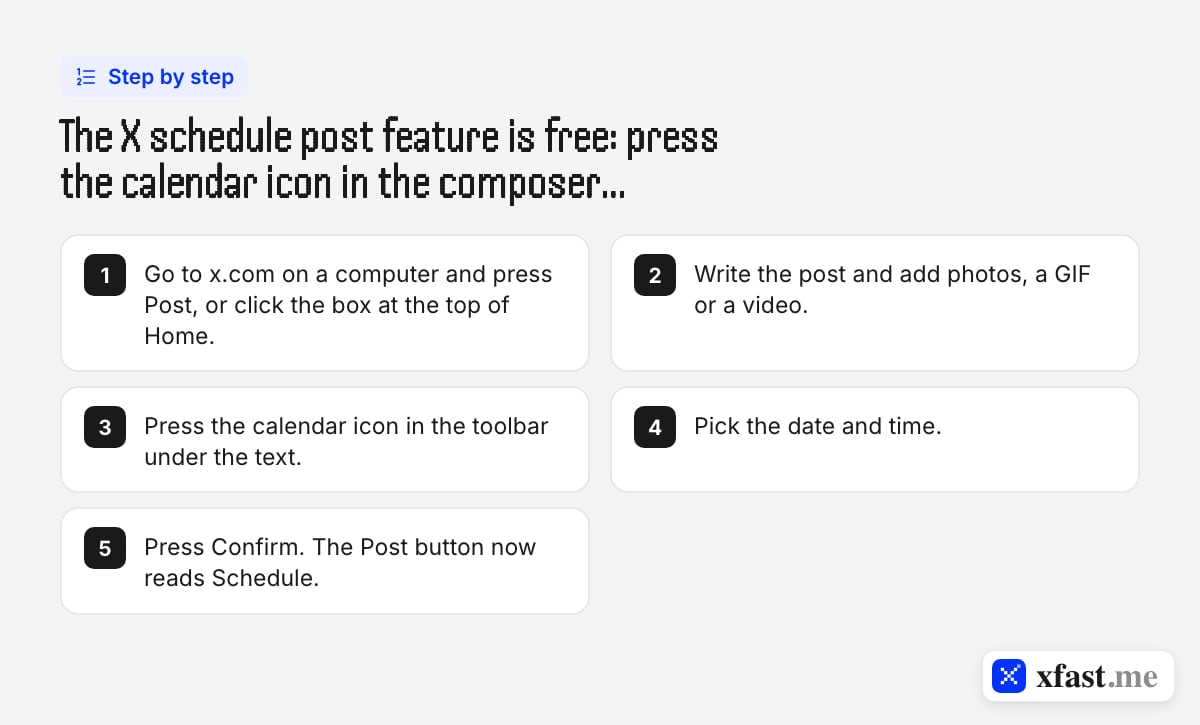
- Go to x.com on a computer and press Post, or click the box at the top of Home.
- Write the post and add photos, a GIF or a video.
- Press the calendar icon in the toolbar under the text.
- Pick the date and time. The time zone shows under the time, and you can go up to 18 months ahead.
- Press Confirm. The Post button now reads Schedule. Press it.
X publishes the post at that minute, with your computer off. Read the date back once: a wrong month or AM instead of PM is the usual reason a post goes out at the wrong time.
One plain post can be scheduled, a thread or a poll cannot
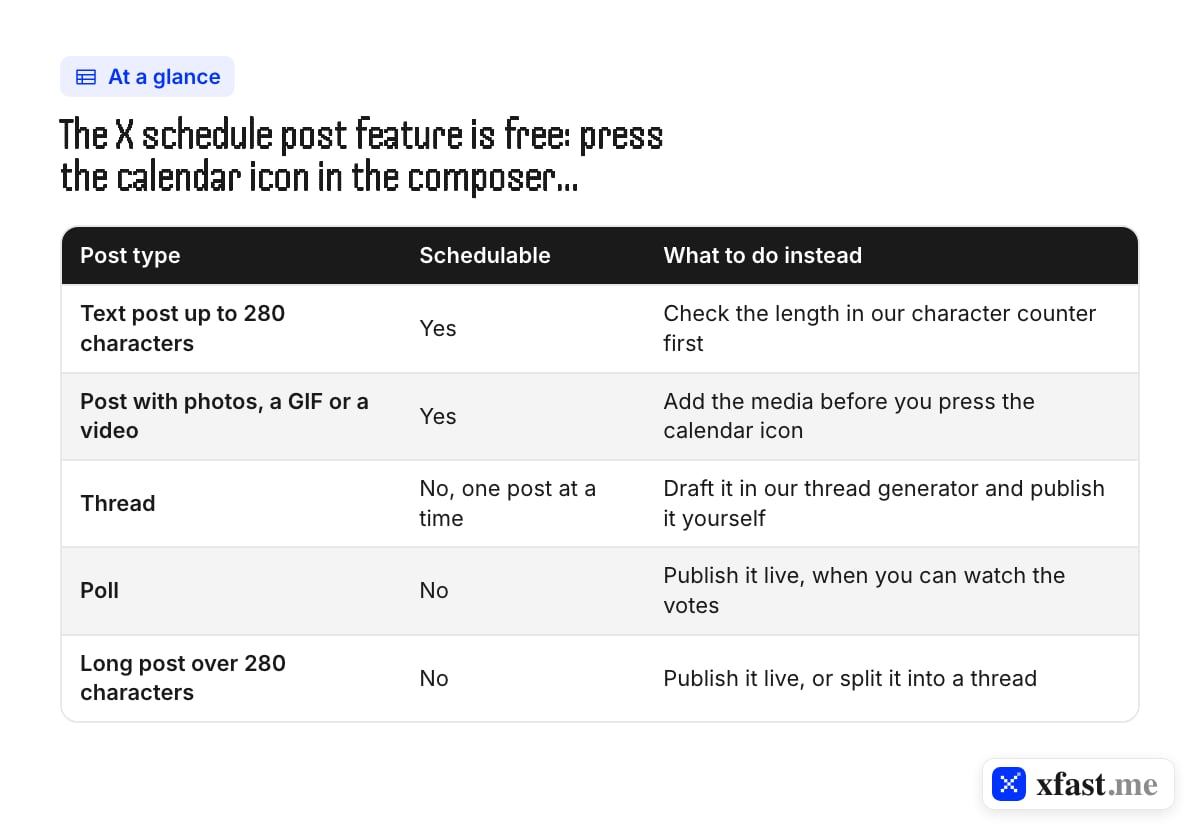
| Post type | Schedulable | What to do instead |
|---|---|---|
| Text post up to 280 characters | Yes | Check the length in our character counter first |
| Post with photos, a GIF or a video | Yes | Add the media before you press the calendar icon |
| Thread | No, one post at a time | Draft it in our thread generator and publish it yourself |
| Poll | No | Publish it live, when you can watch the votes |
| Long post over 280 characters | No | Publish it live, or split it into a thread |
Your queue sits in Unsent posts, not on your profile
A scheduled post does not show on your profile until it goes out, so open the list when you want to see it.

- On x.com press Post, then Unsent posts (some versions label it Drafts).
- Open the Scheduled tab. The Drafts tab next to it holds posts without a time, which never go out on their own.
- Click a post to change its text, media or time, or to delete it.
Open the list once a week and clear the posts that no longer fit the news.
On a phone, look for the calendar icon on iPhone and use the browser on Android
The iPhone app is getting the calendar icon in the composer. Update the app and look for it next to the media buttons. The Android app has no calendar icon: open x.com in your phone browser and follow the five steps above.
Myth: A scheduled post gets less reach than one you type live. Reality: A post spreads when likes, comments and saves arrive in its first hour, whoever pressed the button. The same post with no answers fades in the same hour.
Schedule only for a time you will be online
The queue sends the post. It does not answer the first comment, and the first hour decides how far a post goes. Posts pushed out by automation and left alone lose reach, so we publish by hand from the phone and use the calendar icon only for a slot we will be in. Pick a time you are free for the next hour, reply to every comment in it, and read how to get more views on X for what to do there.
A post that starts slowly can get help from real people. XFast gives free likes, comments and saves on X, from verified accounts of real people, by hand, with no password: a public link to the post is enough. Real readers repost a post that gathered early likes, comments and saves, so send the link the minute the post is live.
 Boost X post free with likes, replies and bookmarks from real people in the first hourBoost X post free by getting likes, replies and bookmarks from real people in the first hour. See the steps and where mutual swaps already run.
 Current X Twitter trends: where to see them right now and how to join one with a post that gets seenCurrent X Twitter trends live under the Trending tab. See where to find them, change the location, read the post count and join with a post that gets seen.
 Optimal posting frequency on X Twitter for growth: 1 to 5 posts a day, set by your stageOptimal posting frequency on X Twitter for growth: posts and replies a day for new, growing and established accounts, plus spacing and timing.